From order to invoice — fully automatic

When an order is shipped from your warehouse, everything else happens by itself: payment is captured, tracking is sent to the customer, the order is closed in the webshop, and the invoice is posted in your ERP system. No manual steps, no copy-paste, no forgotten updates.

10 steps — 0 manual actions

When your team presses “send” on an order, a chain of automatic actions is triggered:

Step 1
Order imported automatically

Orders are imported automatically from your webshop, your ERP system, or via the REST API. Supported sources:

Webshop platforms (9+):
Shopify, WooCommerce, Magento 2, Shopware, PrestaShop, DanDomain, Shoporama, HostedShop, Sylius

ERP systems (8+):
e-conomic, Business Central, Uniconta, Visma.net, Dinero, Rackbeat, Microsoft C5, FlexPos

Direct:
REST API, manual creation

The order lands in the pick queue immediately — ready for handling.

Step 2
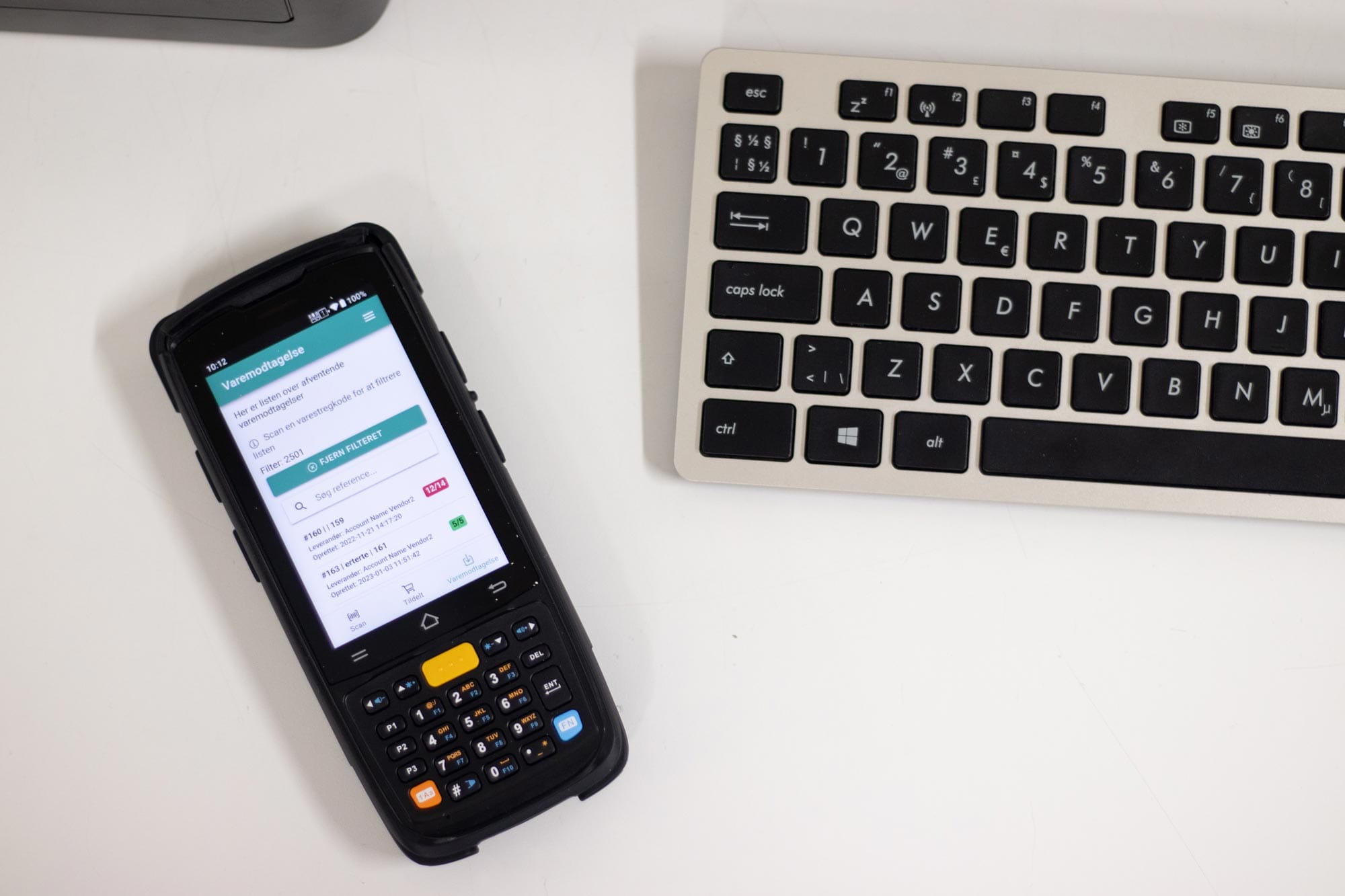
Pick with handheld terminal

The warehouse worker picks the order with a handheld terminal:

  • Multipick: Up to 20+ orders at a time
  • One-liner: Single-line orders completed with a single scan
  • Route optimisation: The pick list sorted by the optimal route
  • Location scanning: Scan location + item = zero errors
  • Batch/serial number: Scanned automatically when relevant
Step 3
Pack and generate shipping label

At the pack station or directly from the handheld terminal:

  • Shipping label generated automatically for the chosen carrier (55+)
  • Customs declarations generated automatically for international shipments
  • Proforma invoices generated automatically for shipments outside the EU
  • Label printed automatically via the print client — no manual print job
Step 4
Payment is captured automatically (Payment Capture)

Once the shipping label is generated, payment is automatically captured on the customer's payment method:

Supported payment gateways (13+):

  • Klarna
  • Quickpay
  • OnPay
  • Stripe
  • Reepay
  • Pensopay
  • Bambora Checkout
  • ePay
  • Adyen
  • PayPal
  • Icepay
  • EAN payment (public sector orders)


Partial delivery?
With a partial delivery, only the relevant part of the payment is captured. The rest is captured when the next part is shipped.

Error handling: If capture fails, the order is automatically marked as conflict — so your team can react.

Step 5
Tracking is sent to the customer

The customer automatically receives a message with the tracking number and tracking link:

  • Email via order correspondence with custom templates
  • Tracking link directly to the carrier's tracking page
Step 6
SMS notification (optional)

Optional SMS notification to the customer:

  • SMS with delivery status and tracking number
Step 7
Order is closed in the webshop

The order is automatically marked as fulfilled/shipped in the webshop:

Supported platforms:

  • Shopify → Fulfilment with tracking number
  • WooCommerce → Order status updated with tracking
  • Magento 1.x/2.x → Shipment creation with tracking
  • PrestaShop → Order status updated
  • Shopware → Order status updated
  • DanDomain → Order closed
  • Hostedshop/IdoSell → Order closed
  • GoldenPlanet → Order closed

The customer automatically gets a tracking email from the webshop.

Step 8
Invoice is created and posted in ERP

The invoice is created and posted automatically in your accounting system:

  • e-conomic: Invoice created and posted, tracking number attached
  • Business Central: Sales order posted, invoice created
  • Uniconta: Invoice created and posted

No manual bookkeeping work. No double entry.

Step 9
Order is completed in the WMS

The order is marked as sent in Lagersystem:

  • Stock updated (already reduced at picking)
  • Order moved to the "Sent" list
  • Full audit trail available
  • Statistics updated (average time, number sent today, etc.)

Everything happens automatically

Zero manual steps between picking and invoicing

Other systems require you to manually:

  • Log into the webshop to mark the order as sent
  • Copy the tracking number into an email
  • Create an invoice in the accounting system
  • Capture payment on the payment gateway


In Lagersystem, all of this happens automatically when you press “send”. Your team focuses on picking and packing — the system handles the rest.
Partial delivery — same flow, just in parts

Can't send everything? Send what you have.

Missing an item? Send what you have in stock now:

  1. Choose which lines are shipped
  2. A shipping label is generated for the partial delivery
  3. Partial capture: Only the relevant part of the payment is captured
  4. Tracking is sent for the partial delivery
  5. The backorder is parked automatically
  6. When the rest is in stock: Repeat for the backorder


Full traceability of what was sent, when, and to whom.

Supported payment gateways

13+ payment gateways — automatic capture

GatewayCaptureRefundStatus
KlarnaAutomaticYesYes
QuickpayAutomaticYesYes
OnPayAutomaticYesYes
StripeAutomaticYesYes
ReepayAutomaticYesYes
PensopayAutomaticYesYes
Bambora CheckoutAutomaticYesYes
ePayAutomaticYesYes
AdyenAutomaticYesYes
PayPalAutomaticYesYes
IcepayAutomaticYesYes
EAN paymentManualYes

Order status workflow

Full traceability of the order's journey

StatusMeaning
RECEIVEDThe order has been received and is ready for picking
PROCESSINGThe order is being processed
PARKEDThe order is parked (awaiting item/information)
PICKEDThe order has been picked and is ready for packing
PACKEDThe order has been packed and is ready for shipping
SENTThe order has been sent — label generated, capture run
FINISHEDThe order has been completed in all systems
READY_FOR_PICKUPThe order is awaiting customer pickup
konfiktError in capture or closing — requires manual review
WAITING_FOR_PAYMENTAwaiting payment (prepayment)
NOTPAYEDPayment not received
REJECTEDThe order has been rejected

Multi-handle — everything in one click

The whole flow is triggered with one click

Multi-handle is the feature that triggers the entire automation flow: payment capture, email/SMS to the customer, webshop closure, ERP invoicing, auto-printing of documents — all in one operation.

  • Pre-validation before execution
  • Lock detection (skips locked orders)
  • Partial capture on partial delivery
  • Proforma invoice auto-print
  • Invoice PDF attached to email
  • Separate email to the shop owner
  • Transaction log of all actions

Automatic documents

Order confirmation, invoice and follow-up

The system can automatically generate and send:

  • Order confirmation PDF — sent to the customer on order receipt
  • Invoice PDF — generated on shipment, attached to email
  • Follow-up email — sent after delivery with a custom template
  • Proforma invoice — for international shipments outside the EU
  • Packing list — aggregated item list for multiple orders

All documents use custom templates with merge fields.

Want to see the full flow in action?

Book a demo and see how an order goes from webshop to invoice — fully automatic, with no manual steps.